Check Running and Preview
The column down the right of the window tells you what MagicChatbox is doing without you opening VRChat.
Read the column
-
Read the top right, where MagicChatbox reports Running and DESKTOP.
-
Read the line under Preview. That is what MagicChatbox is sending right now.
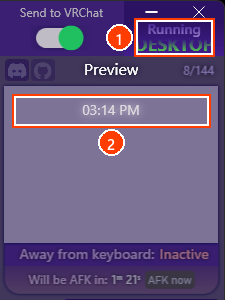 If it is not under Preview, it is not in your chatbox.
-
Check the number beside Preview. It shows how much of the 144 characters VRChat allows your line uses.
What Preview tells you
Preview is empty and the counter reads 0/144 when nothing you have switched on has anything to
report. Run past the limit and whole lines drop out rather than getting cut in half.
The away-from-keyboard lines
While you are using the PC, Away from keyboard reads Inactive and Will be AFK in: counts down underneath. When that countdown reaches zero it reads Active, the line underneath becomes You are AFK for:, and Preview switches to the away message. Moving the mouse or typing resets it.
AFK now, beside the countdown, marks you away without waiting. Toggle voice (V) further down the column belongs to text to speech.
When Preview is not what you expect
If Preview stays empty, either nothing is switched on or what is on has nothing to show yet: see Your chatbox is empty and A line shows nothing.
If the line under Preview looks right but your chatbox stays empty in game, see VRChat shows nothing.