Set up OSC
OSC is the only way MagicChatbox reaches VRChat. It has to be switched on inside VRChat, and MagicChatbox needs an IP address pointing at whatever VRChat runs on.
Turn OSC on in VRChat
VRChat's own OSC documentation has the steps.
VRChat on this PC
The defaults are VRChat's own, so there is nothing to change. Check them once:
-
Select Options.
-
Expand App options.
-
Confirm Local IP address reads
127.0.0.1and Port (outgoing) reads9000.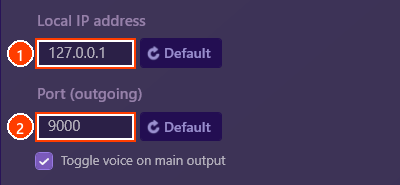 Both fields sit low in App options.
If either one has been changed, Default beside it puts the value back.
VRChat on a Quest or other standalone headset
Before you start, make sure both devices are on the same Wi-Fi.
- Find the headset's IP address in its Wi-Fi settings, which every headset lays out differently.
- It looks something like
192.168.1.42or10.0.0.64.
- It looks something like
- In MagicChatbox, select Options and expand App options.
- Type that address into Local IP address.
- Leave Port (outgoing) at
9000.
A headset's address can change when it reconnects to Wi-Fi, so if MagicChatbox stops working, look it up again.
Both at once
To run VRChat on a PC and a headset together, leave the fields above alone and add a 2nd VRChat output.
Check it worked
Turn on Send to VRChat at the top right and read Preview below it. Check Running and Preview covers what that column tells you.
If your line reaches Preview but never VRChat, see the VRChat shows nothing page. If Preview is empty instead, see the Your chatbox is empty page.