What MagicChatbox does
MagicChatbox fills the chatbox above your head in VRChat, at your desk or in a headset.
That chatbox holds 144 characters. You pick which integrations go in it, and MagicChatbox builds them into one line.
What you need
- A Windows PC. If MagicChatbox will not open, see It will not start.
- VRChat, with OSC turned on: Set up OSC.
The four pages
You switch between them with the buttons across the top of the window.
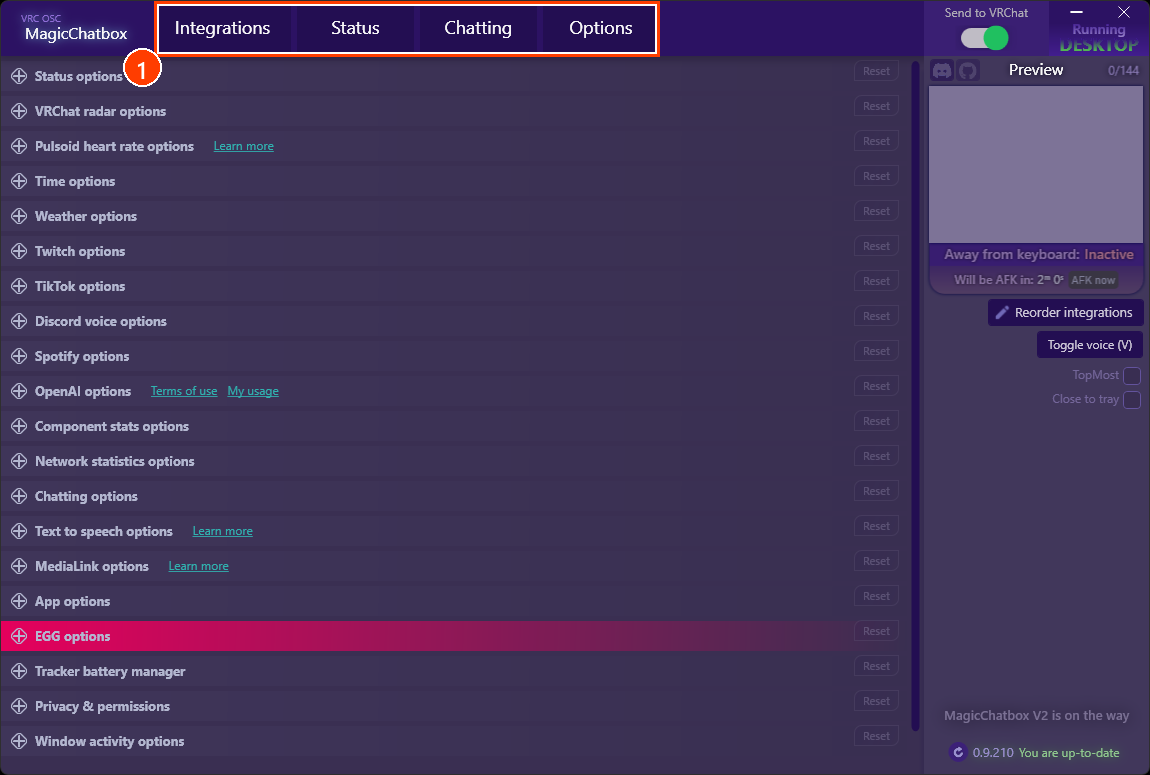 The page you are on carries a coloured bar above its button.
| Page | Open it to |
|---|---|
| Integrations | Switch each integration on or off, and choose whether it shows on DESKTOP, in VR, or both |
| Status | Write your own status lines and pick which one is active |
| Chatting | Type a message and send it to your chatbox yourself |
| Options | Change how everything behaves, including permissions and how MagicChatbox reaches VRChat |
What it can show
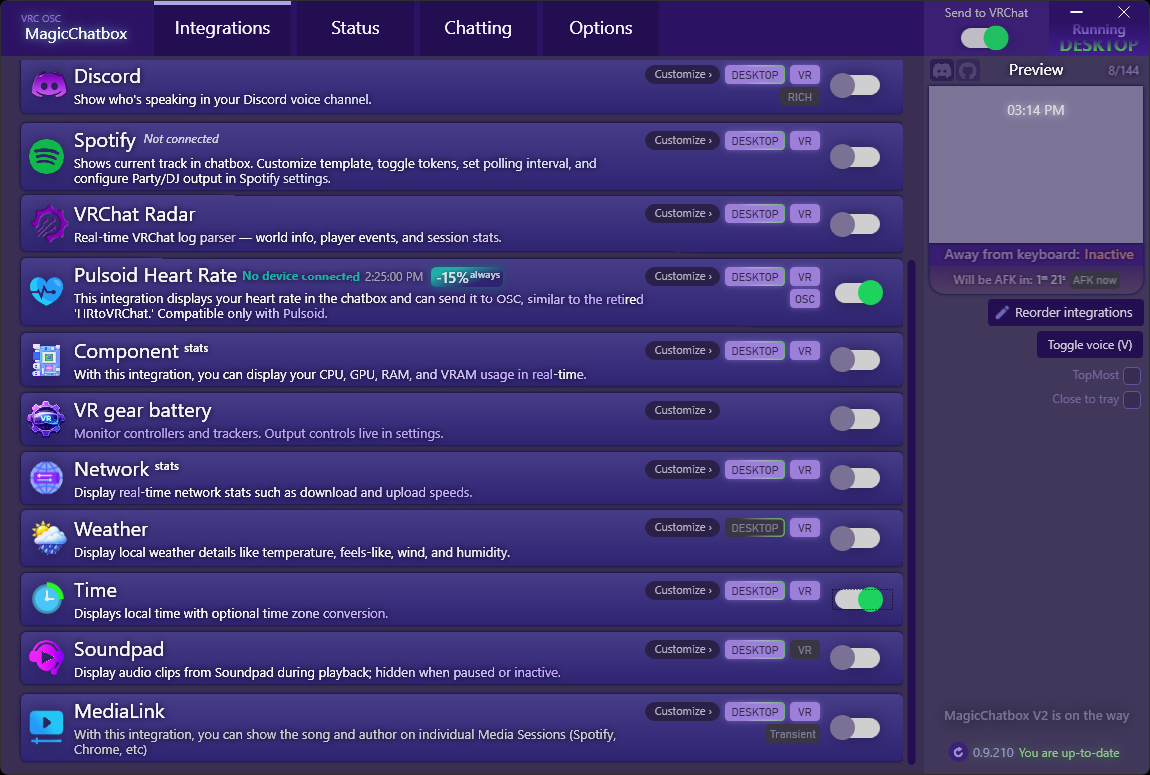
Each of these is a row on the Integrations page.
| Integration | Shows |
|---|---|
| Personal status | A status you write yourself |
| Window activity | Whether you are in VR or at your PC, and which app you have open |
| Twitch | Live stream status, viewer count and current game |
| TikTok | A TikTok profile |
| Discord | Who is speaking in your Discord voice channel |
| Spotify | The track you are playing |
| VRChat Radar | The world you are in, who joins and leaves, and how the session is going |
| Pulsoid Heart Rate | Your heart rate, from a Pulsoid-compatible monitor |
| Component ˢᵗᵃᵗˢ | CPU, GPU, RAM and VRAM usage |
| VR gear battery | Battery levels for controllers and trackers |
| Network ˢᵗᵃᵗˢ | Download and upload speeds |
| Weather | Temperature, feels-like, wind and humidity |
| Time | Local time, plus a second time zone if you want one |
| Soundpad | Audio clips playing through Soundpad |
| MediaLink | The song and artist from a media app on your PC |
Start with Time. Send your first line puts a clock in your chatbox, and everything else switches on the same way.