Turn integrations on and off
Everything MagicChatbox can put in your VRChat chatbox is a row on the Integrations page.
Switch something on
-
Select Integrations.
-
Find the row for what you want to show.
-
Turn on the switch at the right end of the row.
-
Turn on DESKTOP, VR, or both.
-
Watch Preview in the right-hand column. Your new line lands there a moment later.
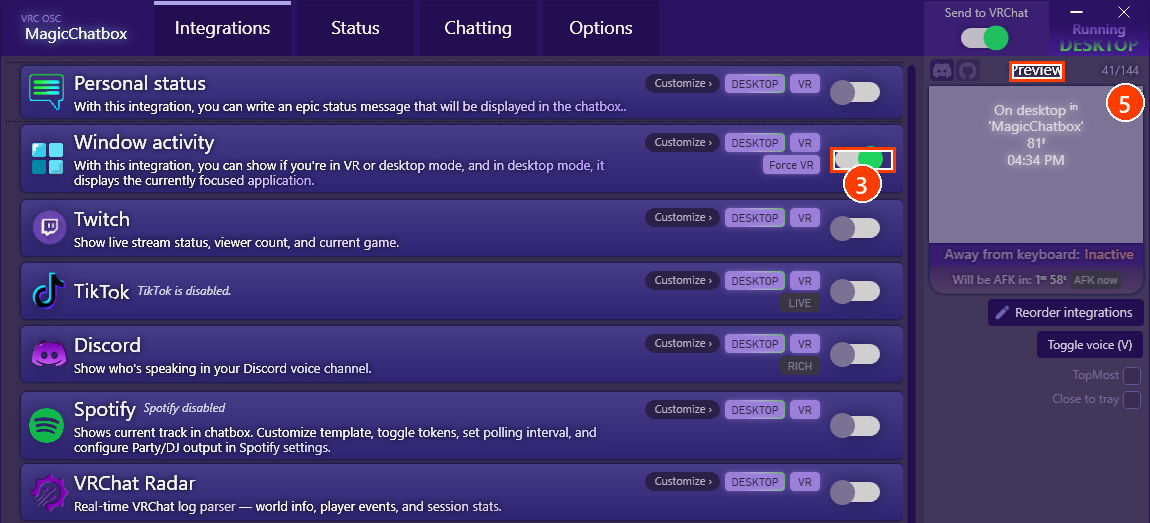 Switching on Window activity puts
On desktop ⁱⁿ 'MagicChatbox'straight into Preview.
Preview is the line MagicChatbox is sending right now. Above it sits Send to VRChat, the master switch for everything MagicChatbox sends: with that off, nothing on this page leaves the app. If Preview shows what you've enabled but VRChat shows nothing, see the VRChat shows nothing page.
DESKTOP, VR, or both
DESKTOP shows that row's line while you are at your PC, VR while you are in a VR headset.
 The pair sits to the left of the switch that turns the integration on.
Five rows carry an extra button, on a second line under the pair.
| Button | Row | What it is |
|---|---|---|
| Force VR | Window activity | A VR-only setting; a PC without a headset cannot show it working |
| LIVE | TikTok | Optional stream-overlay output; your follower count works without it |
| RICH | Discord | An extra Discord-side output |
| OSC | Pulsoid Heart Rate | Sends the reading to your avatar as well, and arrives switched on |
| Transient | MediaLink | Shows your media line only for a short time after the track changes, instead of holding it there |
The 144-character limit
VRChat allows 144 characters in its chatbox, and every integration you switch on takes a share of them. The counter beside Preview says what you have spent so far.
MagicChatbox will drop lines from your chatbox, rather than having them cut off. See Lines dropped from your chatbox for more information.
Settings for this page
- Reorder integrations sets which line comes first.
- OSC separator sits between one integration's line and the next.
- OSC tick / send rate sets how often the finished line goes out.
- 2nd VRChat output sends the same line to a second PC.