OSC separator
Switch on several integrations and they arrive as one line, in the order you set. The separator is the character between them.
Put each integration on its own line
-
Select Options.
-
Expand App options.
-
Select Separate integrations using 'ENTER' instead of '┆'.
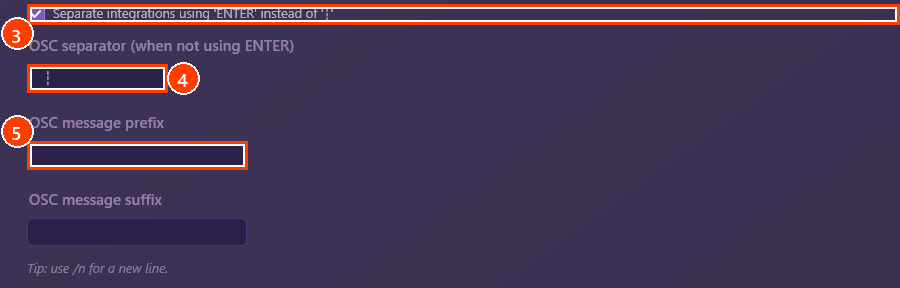 With the ENTER setting on, the separator field is ignored.
Use a character of your own
- Clear Separate integrations using 'ENTER' instead of '┆'.
- Type the character you want into OSC separator (when not using ENTER).
Wrap the whole line
OSC message prefix adds text in front of everything, and OSC message suffix adds it at the
end. Type /n for a new line, so either one can span two lines.
Watch the result
The Preview panel on the right of the window shows the finished line, separators and all. Separators, prefixes and suffixes all count towards the 144-character limit, so a long prefix costs you room for the integrations themselves. If a row you were showing has gone quiet since you added one, see Lines dropped from your chatbox.