Text to speech options
Pick the voice for your spoken chat messages here, along with the speaker it comes out of and what happens when two arrive at once.
Voice and output
-
Select Options.
-
Expand Text to speech options.
-
Scroll to Voice and output.
-
Choose a voice from TTS voice.
-
Choose a speaker or headset from TTS output.
 The playback device is hidden here. Yours lists the audio outputs Windows knows about.
The voices are TikTok's.
Who hears it
TTS output lists playback devices only, so the speech reaches your speakers or headphones and nobody else. Names in that list can mislead: an entry with the word Microphone in it is still a playback device.
VRChat carries only what reaches its microphone, and MagicChatbox has no setting that joins the two. Letting the room hear your speech takes a virtual audio device in Windows, chosen as VRChat's microphone, which is a job outside MagicChatbox.
Autotoggle VRChat voice on TTS opens your microphone while speech plays, which helps only once the speech reaches that microphone.
Playback behavior
Three more checkboxes sit above Voice and output.
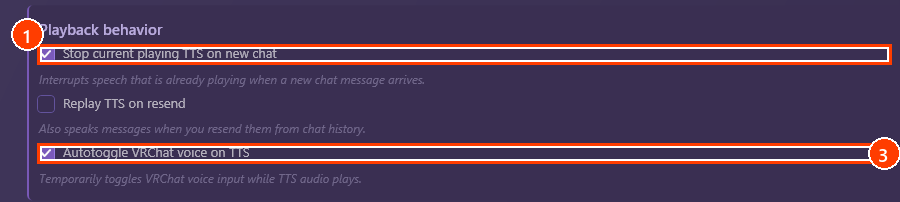
| Setting | Description in the app |
|---|---|
| Stop current playing TTS on new chat | Interrupts speech that is already playing when a new chat message arrives. |
| Replay TTS on resend | Also speaks messages when you resend them from chat history. |
| Autotoggle VRChat voice on TTS | Temporarily toggles VRChat voice input while TTS audio plays. |
Leave Stop current playing TTS on new chat on if you type quickly. Without it, several messages queue up and the speech runs well behind what you are actually saying.
Move your microphone by hand
Toggle voice (V) is the by-hand version of Autotoggle VRChat voice on TTS. It sits in the column down the right of the window, just below Reorder integrations, on every page.
The setting behind that button is Toggle VRChat voice with 'V', in Options → App options.
If you hear nothing at all, A chatting feature is missing or silent picks it up from there.