Component stats options
Each group below decides what one piece of hardware contributes to your chatbox line.
Two settings sit above them all. Autoswitch temperature units follows your region. Use emojis for temperature and power replaces the words with symbols, which buys back a few characters.
Everything you switch on costs characters against the 144-character limit. The graphics group alone offers thirteen settings; two or three from the whole section is a realistic line. Watch the counter beside Preview as you go.
To reach any of it, select Options, expand Component stats options, and scroll to the group you want.
Your processor
The CPU group offers one reading: how busy your processor is, as a percentage. Its other settings are the naming and styling ones every group shares.
Your graphics card

- Clear Auto-select GPU if your machine has more than one card.
- Choose the card from the list that appears underneath.
- Select Show GPU wattage.
- Select Show GPU temperature.
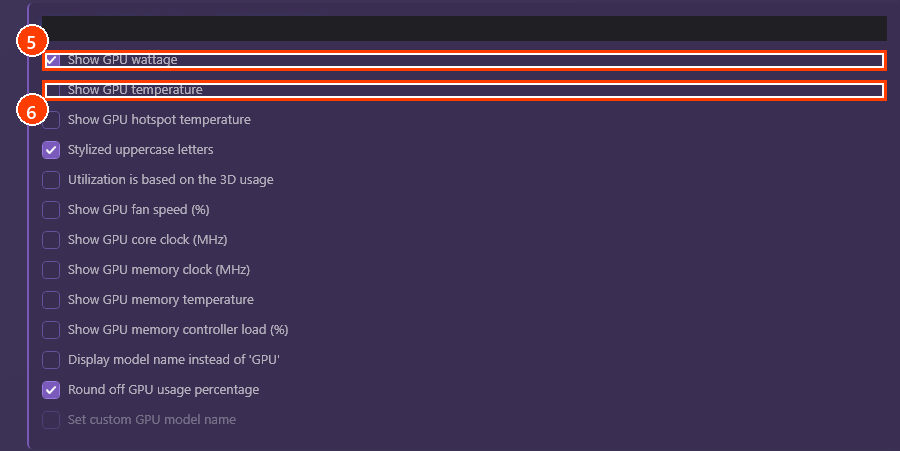
Leave Auto-select GPU on if you only have one card.
Four more switches add exactly the reading their names give: Show GPU fan speed (%), Show GPU core clock (MHz), Show GPU memory clock (MHz) and Show GPU memory temperature. The rest of the group needs a word:
| Setting | Reading |
|---|---|
| Show GPU hotspot temperature | The hottest single spot on the chip, rather than its average temperature |
| Show GPU memory controller load (%) | How hard the card is working to move data in and out of its own memory |
| Utilization is based on the 3D usage | Measures 3D load rather than total load |
Video memory
The VRAM group adds two of its own:
- Show max VRAM capacity shows the total alongside the amount in use.
- VRAM usage is based on the 3D usage measures only what 3D applications are using.
System memory
-
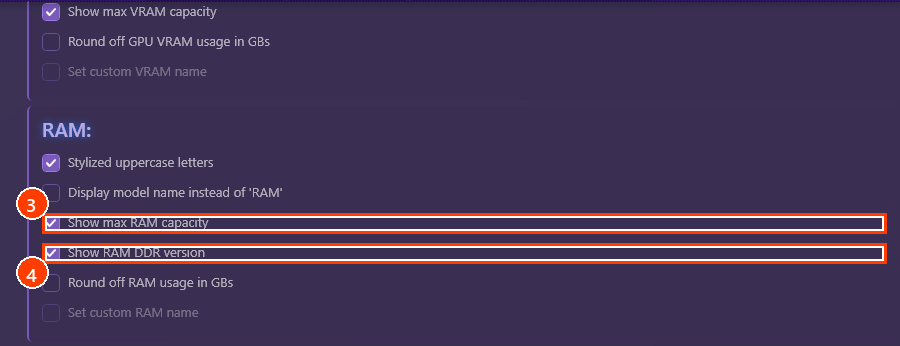
Scroll to the RAM group.
-
Select Show max RAM capacity to show how much you have as well as how much is used.
-
Select Show RAM DDR version.
Names and styling
A full processor model name eats half a chatbox line. Give each component a short name of your own instead:
-
Scroll to the CPU group.
-
Select Display model name instead of 'CPU'.
-
Select Set custom CPU model name, which is greyed out until step 2 is done.
-
Type the name you want into Custom hardware name.

The GPU, VRAM and RAM groups repeat that pair, though the wording is not quite consistent: Display model name instead of 'GPU' goes with Set custom GPU model name, while Display model name instead of 'VRAM' and Display model name instead of 'RAM' go with Set custom VRAM name and Set custom RAM name, neither of which says model.
Two more settings repeat in every group. Stylized uppercase letters draws that group's label in the small raised style the app uses elsewhere. The other drops the decimal places, which reads better and costs fewer characters; its label changes with the group, so you are looking for Round off CPU usage percentage, Round off GPU usage percentage, Round off GPU VRAM usage in GBs, or Round off RAM usage in GBs.
Stats separator near the top of the section sets the character between one reading and the next, for every group at once.