Private apps
Window activity tells everyone which application you have in front of you. Mark an app private and that stops.
Mark an app private
-
Select Options and expand Window activity options.
-
Scroll to the app table and find the Private column.
-
Tick the box in that column on the app's row.
-
Select Hide output completely when application is set to private.
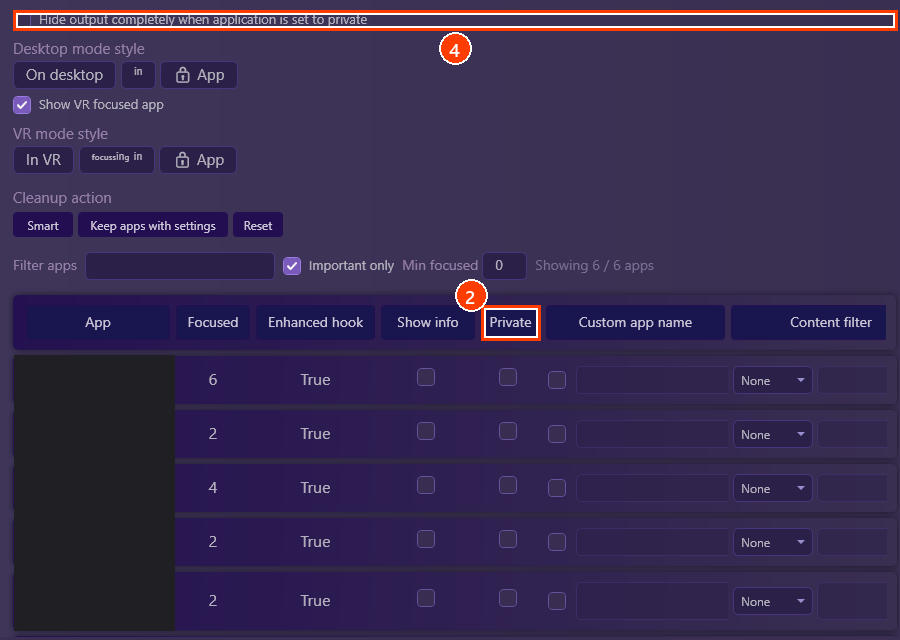
Without Hide output completely when application is set to private, a private app shows a placeholder instead of its name. With it on, the window activity line disappears altogether while that app is in front.
Change the placeholder
Desktop mode style and VR mode style each end in a third box carrying a padlock. That box holds the word shown in place of a private app's name, and the two modes are set separately. The rest of those rows is Display styles.
Trim the list
Three controls above the table narrow it down:
- Filter apps searches by name.
- Important only hides the ones you have never used.
- Min focused hides apps you have focused fewer times than the number you type.
The Cleanup action buttons beside them prune the list, and the count above the table tells you how many apps the filters left.