Reset section to defaults
Every section in Options carries its own Reset, at the right-hand end of its heading row. It puts that one section back to its default settings. The button is labelled just Reset; screen readers announce it as Reset section to defaults.
Reset one section
-
Select Options.
-
Find the section you want to undo, and select Reset at the right-hand end of its heading row. The button is there whether the section is expanded or collapsed.
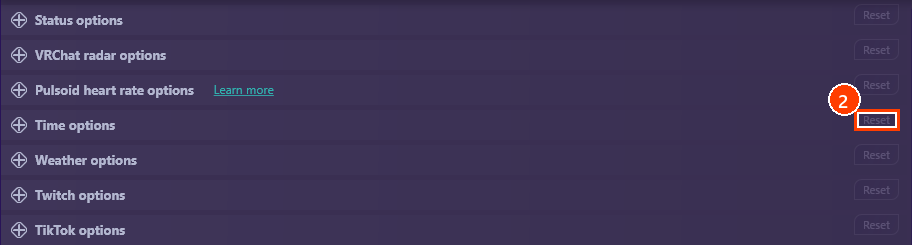
-
Read what the app asks, then select Reset to go ahead, or Cancel to leave the section exactly as it is.
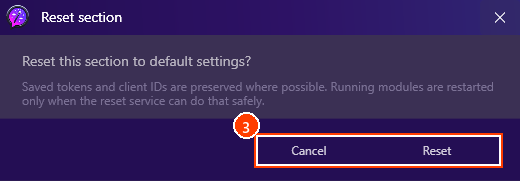 Nothing happens until you answer.
What the app asks first
It asks the same thing whichever section you started from:
Reset this section to default settings?
Underneath, it says your sign-ins are kept where possible. If one of them would be a nuisance to set up again, check Privacy & permissions and note what you have connected before you confirm.
To keep a copy of your settings first, see Your settings, profiles and backups.