Customization: restyle your music line
Customization holds a box for each part of your MediaLink line: the icons, the separator, and the wording that goes with each playback state. Transient mode just above it controls how long the line stays on screen.
Edit the icons and wording
-
Select Options.
-
Expand MediaLink options and scroll to Customization.
-
Type the character you want into Play icon.
-
Change Separator, the word that sits between the track and the artist.
-
Edit Playing: under State text to change the wording in front of the track.
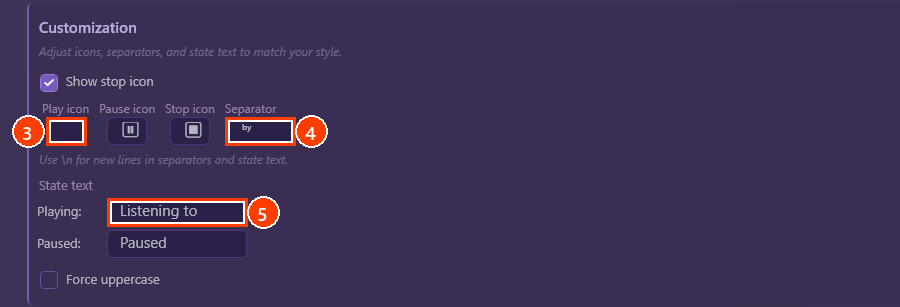
Pause icon and Stop icon work the same way, and Paused: sets the wording used while playback is paused.
To push the artist onto a line of its own, type \n where you want the break in Separator or in one of the State text boxes.
Turn parts off
- Show media icon prefix in Basic options controls whether the icon appears at all.
- Show pause icon when music is paused keeps a marker up while playback is paused, and Show stop icon in Customization does the same for stopped.
- Force uppercase puts the whole line in capitals.
Show the track only when it changes
A track name and artist can hold fifty of your line's 144 characters permanently. Transient mode announces each new track, then gives that space back to your status, the time, and everything else you have running.
-
Expand MediaLink options and find Transient mode.
-
Select Only show when changing.
-
Set Hide after: to how many seconds the track should stay up.

Clear Only show when changing and the track stays visible the whole time it is playing.
The Transient button on the MediaLink row of the Integrations page is this same setting: turn it on in either place and it is on in both.