Privacy & permissions
Privacy & permissions lists nine things MagicChatbox may want to do, and you allow or deny each one. Some read from your own PC, like your hardware or the app you've got in front of you. Others reach out to a service such as Twitch.
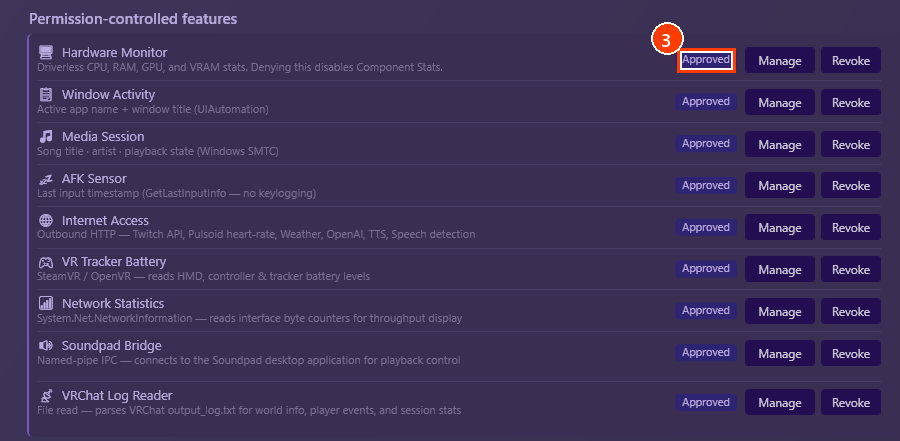
Deny one and the feature behind it goes quiet exactly as though it were broken: the switch is on, and nothing shows up. So when every row here reads Approved, nothing is being blocked.
Switching a source on is a separate decision, made on the Integrations page. See Send your first line to VRChat.
What each permission powers
| Permission | What stops working without it |
|---|---|
| Hardware Monitor | Component stats: processor, memory, graphics card and video memory readings |
| Window Activity | The application and window title you are showing |
| Media Session | MediaLink: song title, artist and playback state |
| AFK Sensor | Away-from-keyboard detection and the AFK message |
| Internet Access | Everything that talks to an outside service: Twitch, Pulsoid heart rate, Weather, the OpenAI helpers, text to speech and speech detection |
| VR Tracker Battery | VR gear battery levels through SteamVR |
| Network Statistics | Download, upload and utilization figures |
| Soundpad Bridge | The Soundpad integration |
| VRChat Log Reader | VRChat Radar: world info, player events and session stats |
Start with Internet Access. Deny it and six separate integrations go quiet at once, which looks like six unrelated faults.
When a feature is switched on and still produces nothing, this list is the first place to look. If the permission it needs is already approved, A row shows nothing picks up from there.
Read the list
-
Select Options.
-
Expand Privacy & permissions.
-
Look to the right of each feature. One you have granted reads Approved.
Change a decision
-
Find the row you want and select Manage beside it.
-
Tick the box to allow the feature, or clear it to deny.
-
Select Save & Close.
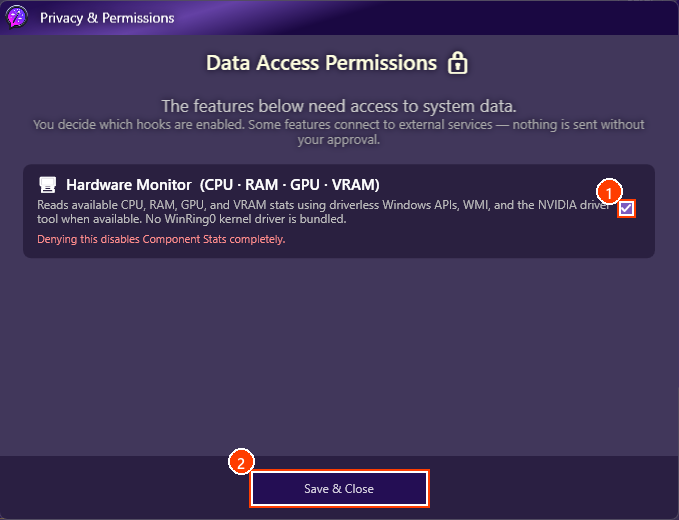
Manage opens a separate Privacy & Permissions window for that one feature. It explains what the feature reads and warns you if denying it switches something off.
Nothing is applied until you select Save & Close. There is no Cancel button and no close cross, so to leave without changing anything, press Alt+F4. Clear the tick first and it makes no difference: the row behind still reads Approved.
Revoke sits immediately to the right of Manage, and it may not ask you to confirm. Check which of the two you are on before you select.
Where your sign-ins are kept
The sign-ins involved here belong to other people's services (Spotify, Twitch, Discord, Pulsoid and OpenAI), so an account that will not connect is fixed with that service. The row itself names what it is waiting for.
Your sign-ins stay on your own PC, encrypted by Windows. There is no MagicChatbox server holding them.