AFK Detection
Stop touching your keyboard and mouse for long enough and the away message takes over your whole chatbox line, replacing your status and every integration you have running. Moving the mouse or typing brings the usual line back.
Switch it on
-
Select Options.
-
Expand Status options and find AFK Detection.
-
Select Enable AFK detection.
-
Set Timeout time in to the number of idle seconds that count as away.
-
Edit the wider AFK style box to change the wording.
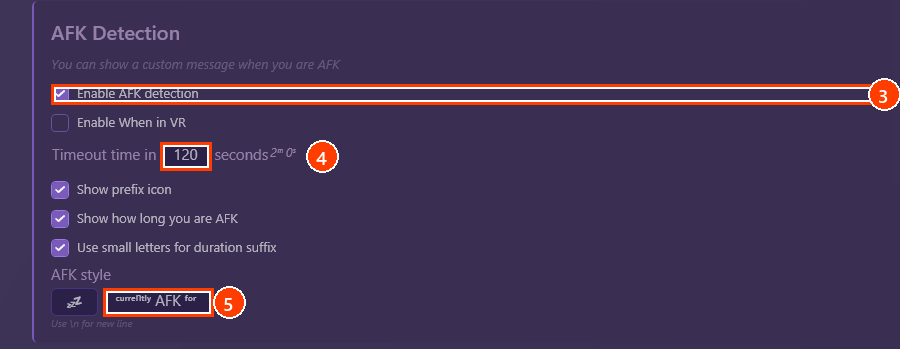 The seconds you type are echoed in minutes and seconds beside the box: 120 reads as 2ᵐ 0ˢ.
Word the message
AFK style is two boxes side by side. The small one holds the icon, the wider one the wording that follows it. MagicChatbox arrives with a moon icon and the wording currently AFK for, set in small raised letters. Clearing Show how long you are AFK swaps the wording in the wider box.
Typing \n in the wider box starts a new line.
Choose which pieces show
| Setting | What it does |
|---|---|
| Enable When in VR | Keeps AFK detection running while you are in a headset |
| Show prefix icon | Puts the icon box, and the icon itself, in front of the message |
| Show how long you are AFK | Adds a running count of the time away |
| Use small letters for duration suffix | Draws the minutes and seconds markers in the tiny raised style |
Use small letters for duration suffix only exists while Show how long you are AFK is ticked; clear that one and the row disappears from the section.
Watch it count down
The right-hand column of the window carries the readout. Away from keyboard: shows Inactive while you are at the machine, and Will be AFK in: counts down to your timeout. Touch the keyboard and the countdown restarts.
AFK now beside it flips you to away without waiting for the timer.
AFK detection needs the AFK Sensor permission. If the countdown never starts, check that permission under Privacy & permissions.