Time options
Time options decides what the clock in your chatbox looks like: 04:52 PM, 16:52,
My time: 16:52, or the time somewhere else.
None of it shows up until the Time integration is switched on, with DESKTOP or VR on as well. With both on and still no clock, Your chatbox is empty works through the rest.
Switch to a 24-hour clock
-
Select Options.
-
Expand Time options.
-
Select 24-hour time format.
-
Or select Use current system culture for formatting time to take the format from your PC's regional settings. With both on, 24-hour time format wins.
 With 24-hour time format on, a Preview of
04:52 PMbecomes16:52.
Label the time in your chatbox line
Select Show 'My time:' before the time integration and the line changes from 16:52 to
My time: 16:52, so the numbers are not mistaken for another integration.
Show a different time zone
-
Expand Time options.
-
Select Use a custom time zone.
-
Choose the zone from the list underneath. That list is a fixed set of 19, so a zone that is not on it cannot be shown.
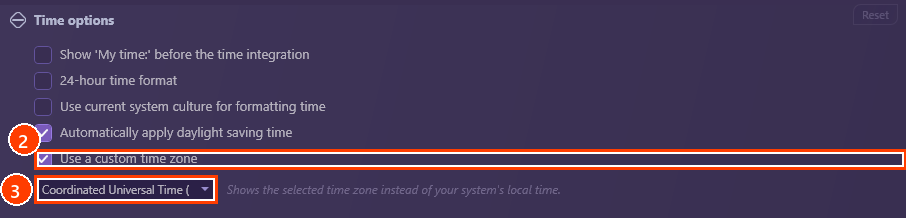
Clear Use a custom time zone to go back to your own clock.
Daylight saving
Automatically apply daylight saving time applies to whichever zone you are showing. Turn it off if the zone you picked does not shift twice a year, or your clock runs an hour out for half the year. Clearing it reveals a second setting underneath, Apply daylight saving time, already on.