Discord voice options
Discord voice options, which you'll find inside Options, covers two separate jobs: who is speaking in your Discord voice channel, and your VRChat status inside Discord.
Voice Detection is the half that needs setting up, and that starts on Discord rather than here. Over on Discord's own developer site you register an application. Discord walks you through that part, and this guide does not cover it. What you want back is the ID that registration gives you: paste it into the Application ID box further down this page.
Two features, different requirements
- Rich Presence shows your VRChat status in your Discord profile, and needs no setting up.
- Voice Detection shows who is speaking in your voice channel in the chatbox. It is still in testing, so if the speaker list looks wrong, the settings below are worth a second look before you assume something has broken.
Show who is speaking
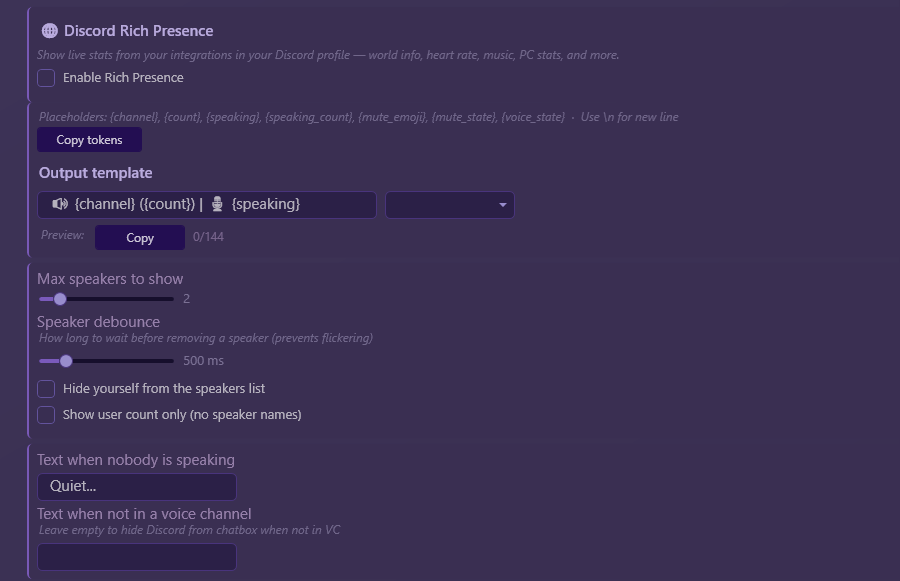 The template accepts placeholders and previews the result with a character count.
The wording in the output template is up to you. Anywhere the app should fill in a live value, you leave a placeholder for it. An unlabelled picker beside the box holds nine ready-made layouts you can load and edit.
Four more settings shape the speakers list itself:
| Setting | What it does |
|---|---|
| Max speakers to show | Caps how many names appear at once |
| Speaker debounce | Waits before removing a name that has gone quiet |
| Hide yourself from the speakers list | Leaves your own name out |
| Show user count only (no speaker names) | Replaces the names with a number |
Use Show user count only (no speaker names) if you would rather not name the people in your channel.
Text when nobody is speaking covers a channel where everyone has gone quiet. Text when not in a voice channel covers being out of one altogether, and leaving that box empty hides Discord from your chatbox instead.
Mute and deafen
Show mute/deafen emoji in chatbox adds a marker when you are muted or deafened, and the two small boxes beside it set what that marker is. Send mute/deafen as OSC parameters passes the same state to your avatar instead.
Setting it up
Voice Detection setup (one-time) lists three steps: your application ID, then a redirect address, then Connect with Discord at the top of the section.
The Application ID field is masked. Copy beside the Redirect URI puts the address on your clipboard, so it matches exactly when you paste it back into the developer site. Auto-connect on startup reconnects each launch.