Spotify options
You choose here which pieces of a track are allowed out at all, and the line the Spotify integration builds from them. The section is called Spotify options, and you reach it from Options.
Connecting starts outside MagicChatbox. Spotify only lets another app read what you are playing once you have registered an application in its own developer settings.
The integration is still pre-release, so treat something odd as a rough edge rather than a mistake of yours. Re-checking the Client ID below and connecting again is the first thing worth trying.
Connecting
- Paste your Client ID into the box at the top, under the instruction Paste your public Spotify Client ID below to enable Connect Spotify.
- Select Copy beside Redirect URI and paste that address into your Spotify developer app settings, so the two match exactly.
- Select Connect Spotify. A browser window opens for you to sign in.
Connection setup underneath confirms that your Spotify password never reaches MagicChatbox. Auto-connect on startup reconnects each time MagicChatbox launches.
Playback controls need Spotify Premium and a device that is already playing. If the playback buttons do nothing, open Spotify somewhere first.
Choose what is allowed out
The top row of Privacy and token toggles decides what Spotify is permitted to share at all: Allow title, Allow artist, Allow album, Allow device, Allow volume, Allow play state, and Privacy mode.
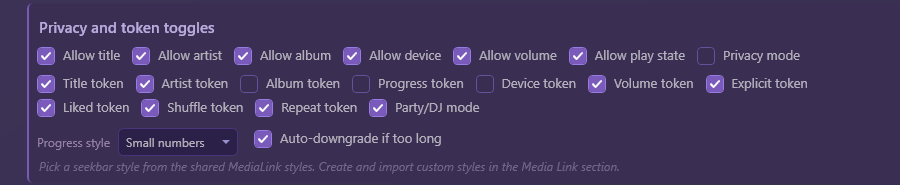
The rows under it decide which placeholders your template is allowed to fill.
Privacy mode keeps Spotify playing but keeps it out of your chatbox.
Write the line
Output template is the line itself, written with placeholders. Put one where a value belongs and the app fills in the real title, artist or album. Copy tokens beside it lists every placeholder available. A CHATBOX OUTPUT PREVIEW box under the template shows the result with a character count.
An unlabelled picker beside Output template holds eight ready-made layouts you can drop in and edit.
Icons and fallback text sets the small pieces the placeholders insert: the play and pause symbols, the liked and explicit marks, the separator, plus the wording used when Spotify is disconnected, idle, paused, or hidden by privacy mode. Leave any icon blank to hide it.
Running Spotify and MediaLink together
Both integrations can report the same song, so a track can land in your chatbox twice. MediaLink coexistence settles it: Prefer dedicated Spotify hides Spotify sessions from MediaLink, Allow both keeps both sources live, and Ask me once prompts the first time they overlap.
Which player MediaLink follows is set on the MediaLink behavior page.
How often it checks
Widget and polling holds two intervals: Active poll (sec) while music is playing, and Idle poll (sec) while it is not. Longer intervals are gentler on the Spotify service.