Twitch options
Twitch options builds the line that tells people in VRChat you are live, what you are playing, and how many are watching. Look for it among the sections on Options.
Setting this up starts on Twitch's own developer site, where you register an application.
Choose what appears
The Output group decides what the line says:
| Setting | Adds |
|---|---|
| Show LIVE indicator | A live marker, worded by Live prefix |
| Show current game | The game you are playing, worded by Game prefix |
| Show viewer count | How many people are watching |
| Show viewer label | A word after the count, set in Viewer label |
| Use compact viewer counts (1.2K) | Shortens large numbers |
| Show follower count | Your follower total |
| Show stream title | The title you gave the stream on Twitch |
| Show channel name | Your channel's name on Twitch |
| Use small text for labels | Draws the labels in the small raised style |
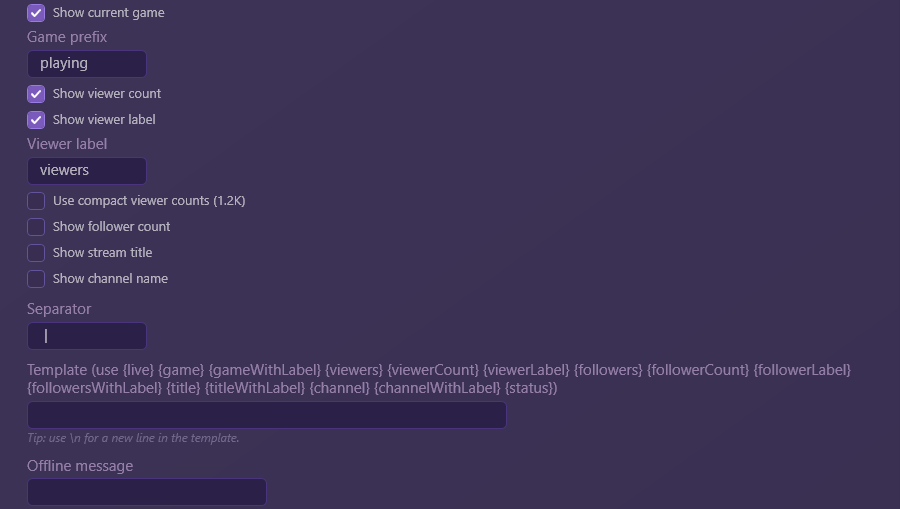 Each prefix box sets the wording that goes with the switch above it.
Separator sits between the pieces. Template replaces the switches with a line you write, each placeholder standing in for a live value; the label lists every one it accepts.
When you are not streaming
Offline message is what shows while the stream is down. Leave it empty to hide the line instead.
Refresh
Refresh interval (seconds) sets how often MagicChatbox asks Twitch for an update, with a Sync button beside it and a Last sync readout. With no account connected it reads Never, and the section shows Missing Twitch settings.
Community tools
Announcements and Shoutouts post straight to Twitch chat. Each has an enable switch, and each names the Twitch moderator permission it needs.
Connecting
Setup Twitch Integration at the top of the section fills in the Channel name, Client ID, and Access token fields below it from the application you registered.