VRChat radar options
VRChat Radar announces the world you are in, who arrives and leaves, and how the session is going. Every switch behind those announcements lives under Options, in VRChat radar options.
MagicChatbox builds each announcement by reading VRChat's log, and that reading is the part still in testing. One can turn up late or not at all; when it goes missing, its switch and its template box are the two places to look.
Choose how much it says
Display Mode sets the overall behaviour:
AlwaysShow: permanently shows world info. TransientOnly: only shows during events. EventOverlay: shows world info, overlays events.
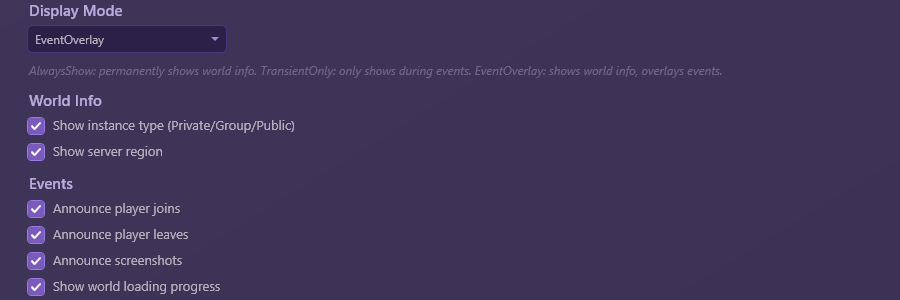 Each announcement is its own switch.
The announcement switches sit in two groups. World Info carries the instance and region switches, Events the rest.
| Setting | Adds |
|---|---|
| Show instance type (Private/Group/Public) | Who the instance is open to |
| Show server region | The region the instance runs in |
| Announce player joins | A line when someone arrives |
| Announce player leaves | A line when someone goes |
| Announce screenshots | A line when you take a screenshot |
| Show world loading progress | How far a world has got through loading |
Session detection
Use VRChat window detection (requires Window Activity permission) notices when VRChat itself is running, which ends stale sessions more reliably.
End session after inactivity is a slider in minutes. After that long with nothing happening, the session ends by itself.
Encounter tracking
Detect players seen in consecutive rooms notices when the same person turns up in your next world, and Show encounter table (session-scoped) lists them. Both are off to begin with, and nothing they collect leaves your PC.
Session stats and notifications
A row of counters sits above Show session stats in chatbox (after world change), covering worlds, unique players, peak players, joins and leaves.
Notify when a player follows you to another world and Warn when an avatar is blocked by performance shield are the two notifications, the second with its own Duration slider.
The performance shield is VRChat's own
MagicChatbox blocks nothing and spots no crashers or exploiters, so do not count on it to protect you from one. Nothing here turns the shield on or off: the switch adds a chatbox line for a few seconds when the shield hides an avatar, so leaving it off changes what you hear about, not your safety.
Templates
Templates has a separate box for each announcement: World info, Player joined, Player left, Screenshot, Loading world, Seen again, Session stats, and Avatar blocked. In each box, a placeholder takes the place of the live value, and you supply the words around it. The placeholders each box accepts are listed above it, and a LIVE PREVIEW box below shows the result.
OSC Triggers adds Camera flash on screenshot.