Weather options
Where the weather line gets its forecast, and how much of that forecast reaches your chatbox, are both yours to choose. It all sits in Weather options, a section of the Options page.
Set the place
Location mode chooses how MagicChatbox decides where you are. Set it to Custom city and type the place into the box underneath. The app masks the city you have typed, so a screenshot of this section will not give your location away.
Weather refresh (minutes) sets how often it updates, with a Sync button and a Last sync readout beside it.
Choose the readings
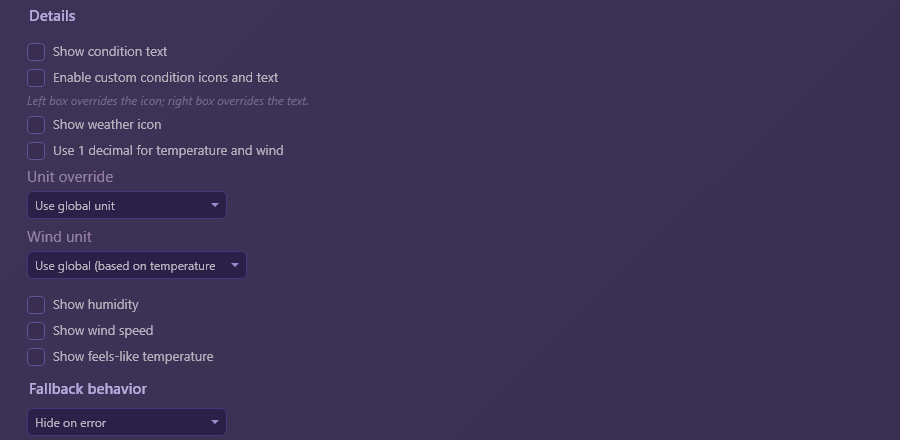 Every reading is a separate switch, so the line stays as short as you want it.
| Setting | Adds |
|---|---|
| Show condition text | The word for the weather: cloudy, clear, and so on |
| Show weather icon | A symbol for the same thing |
| Show humidity | How humid it is |
| Show wind speed | How hard the wind is blowing, in the unit you set below |
| Show feels-like temperature | The apparent temperature |
| Use 1 decimal for temperature and wind | One decimal place instead of a whole number |
Enable custom condition icons and text replaces what the app uses: the left box for the icon, the right box for the text.
Units
Unit override starts at Use global unit, Wind unit at Use global (based on temperature). Either can be set for weather alone.
Layout
Layout mode switches between a single line and a multi-line arrangement. Weather stats separator sits between the values.
Template replaces the switches with a line you write yourself. A placeholder is a short name in
curly brackets that stands in for a reading: type it where you want the value and the app swaps in
the real figure. The label above the box lists them all, each named after its reading: {time},
{weather}, {temp}, {unit}, {tempWithUnit}, {condition}, {humidity}, {wind}, and
{feels}.
When the lookup fails
Fallback behavior starts on Hide on error: the weather drops out of your line instead of showing a broken reading.