Tray and window settings
While you are in VR, MagicChatbox is better out of the way: minimized to the notification area, or hidden there from the moment it starts. The checkboxes at the top of App options set that up.
The description in App options says that turning on minimize to tray also turns on close to tray. It does not. With Minimize to system tray selected and Close to system tray clear, closing the window still shuts MagicChatbox down, and your chatbox goes quiet mid-session.
Select Close to system tray as well, and the window goes quietly to the notification area whichever button you press.
Get the window back
Double-click the MagicChatbox icon in the notification area. One click does nothing, and a right-click opens the quick panel instead of the window.
If you cannot see the icon at all, select the arrow at the left end of the notification area to show the hidden icons first.
If it seems to have gone for good, start from Start here.
Find the six tray settings
-
Select Options.
-
Expand App options.
-
Select the boxes you want.
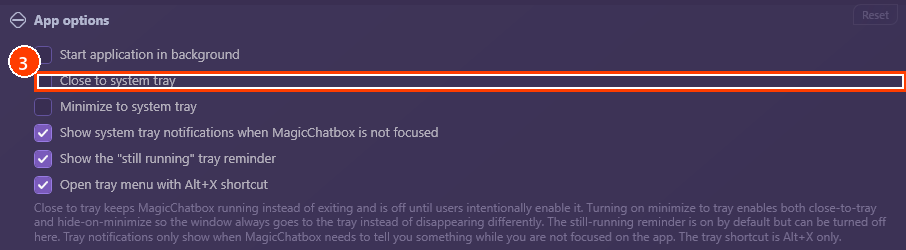
| Setting | What it does | Starts as |
|---|---|---|
| Start application in background | MagicChatbox launches straight to the notification area, with no window on your desktop | Off |
| Close to system tray | Closing the window hides it instead of shutting the app down | Off |
| Minimize to system tray | Minimizing takes the window off your taskbar as well as your desktop | Off |
| Show system tray notifications when MagicChatbox is not focused | Alerts you while its window is out of sight | On |
| Show the "still running" tray reminder | Reminds you the app is alive after it hides | On |
| Open tray menu with Alt+X shortcut | Turns the Alt+X panel below on and off | On |
Leave the two notification settings on while you run hidden. With no window on screen, they are all MagicChatbox has left to get your attention with.
Start application in background hides the window at launch; it does not launch MagicChatbox for you. There is no setting for starting with Windows.
Keep the window in front
Always on top, further down App options, pins the window above every other program so it stops sliding behind a browser or a game.
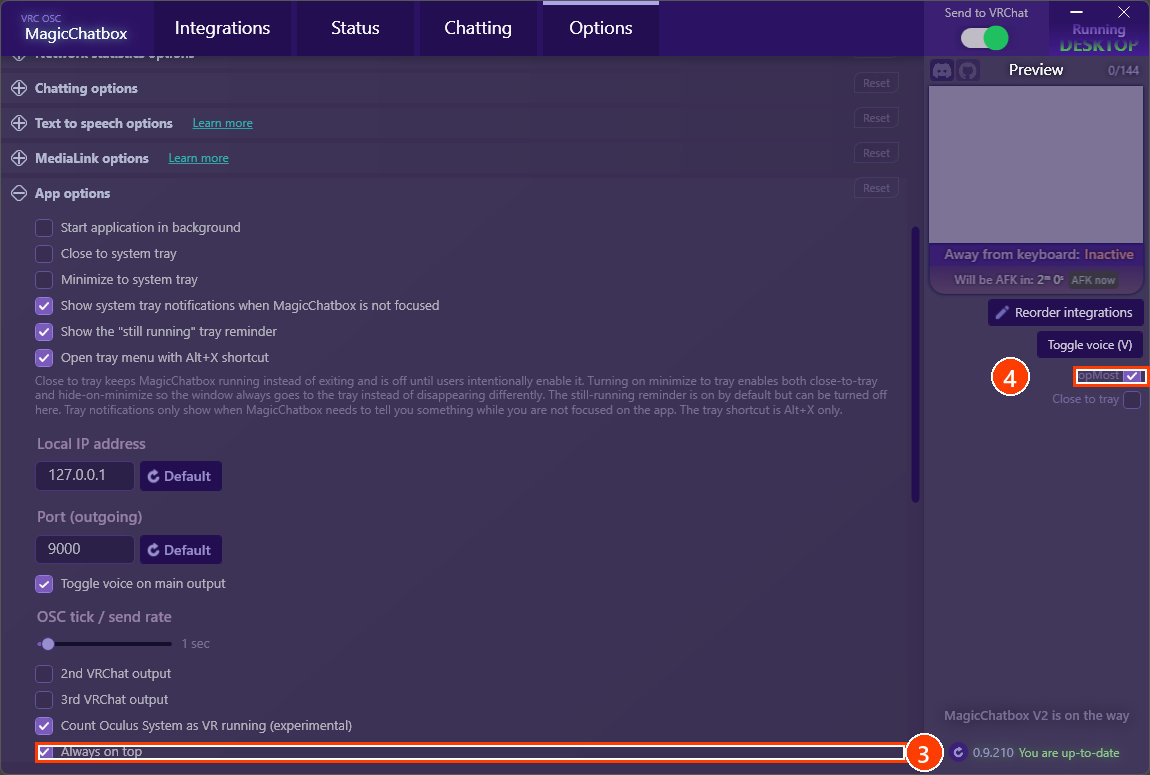
TopMost, in the bottom-right corner of every page, is a second switch for Always on top, and Close to tray just below it is a second Close to system tray. Turn either twin on and its partner follows.
Open the quick panel with Alt+X
Press Alt+X anywhere in Windows and a compact panel opens beside your pointer.
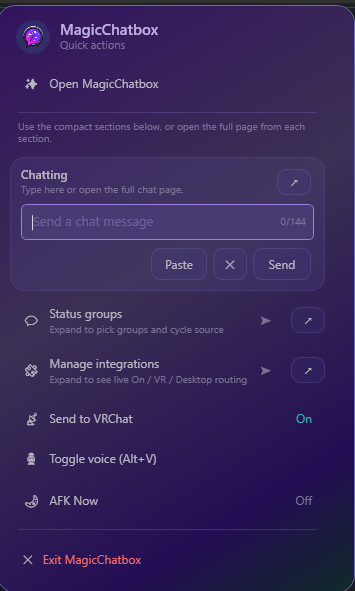
The panel repeats controls from sending a message and choosing what your chatbox shows. If Alt+X already belongs to another program, clear Open tray menu with Alt+X shortcut.